
A chat that reads your analysis— and edits your workflow.
The AI Chat tab sits under the canvas. Every message carries the live node graph, and the model answers by calling read tools against the backend running on your PC — cluster counts, marker genes, QC thresholds, the last error. When a change is needed it returns an Action Plan you Apply, Undo, or hand to the agent with Approve & Run.
It knows what is on the canvas.
Before the model sees your question, the app assembles a system prompt from the workflow itself: which nodes exist, what they ran with, which one failed and why, plus the node reference for anything your message mentions. Ask “which clusters are T cells?” and the answer cites the markers your DEG node actually found.
The live node graph
Every node with its type, label, parameters, status and — if it failed — the error string. Edges too, so the model knows what feeds what.
Data summaries
For each node that has produced data: cells × genes, obs and var column names, embeddings and stored keys. Not the matrix.
Recent errors
The last ten error log lines from this workflow, so “why did that fail?” needs no retyping.
Recently deleted nodes
Kept in context so “put back the node you removed” still makes sense a few turns later.
Execution mode
Whether the chat is in Guided or Auto mode, which shapes how large a plan the model proposes.
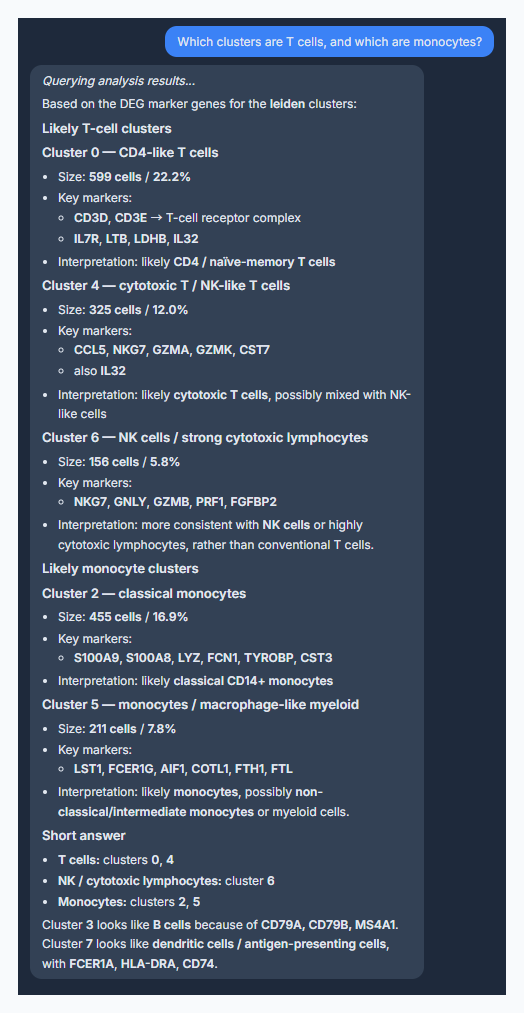
Captured from the app: the model names T-cell and monocyte clusters from the marker genes the DEG node computed, not from memory.
85 read tools the model can call on its own.
Numbers are never guessed. When a question needs a value — how many doublets were removed, which pathways are enriched in cluster 3, whether the spatial neighbourhood test was significant — the model calls a tool, the backend reads the AnnData on disk, and only the small JSON result goes back. Up to five tool rounds per reply, then the answer. The data tools are offered as soon as the workflow has produced data or an error; the catalogue tools are there from the first message.
Data, QC & preprocessing
get_data_overviewget_qc_summaryget_doublet_summaryget_normalization_statusget_hvg_summaryget_pca_summaryrun_obs_query
Clusters, markers & genes
get_cluster_compositionget_marker_genesget_gene_expressionget_clustering_qualityget_batch_compositionget_annotation_summary
Spatial
get_spatial_summaryget_nhood_enrichmentget_spatial_domainsget_cellular_neighborhoodsget_co_occurrenceget_ripleyget_spot_deconvolution
Trajectory, velocity & CellRank
get_trajectory_summaryget_paga_connectivityget_velocity_summaryget_cellrank_fate_summaryget_lineage_drivers
Bulk, methylation & ATAC
get_bulk_de_resultsget_gsea_resultsget_dmp_resultsget_dmr_resultsget_atac_qc_summaryget_motif_results
Pathways, activity & communication
get_pathway_enrichmentget_activity_resultsget_cellphonedb_resultsget_liana_resultsget_ligand_receptor_results
Workflow, figures & provenance
get_workflow_graphget_workflow_healthget_node_errorsget_provenancelist_visualizationsget_group_color_stateget_memory_estimateget_resource_status
The node catalogue
list_nodes and describe_node expose every runnable node with its real parameter schema — types, ranges, option values — even on an empty canvas. The same schema validates every plan, so the model cannot invent a parameter that the node does not have.
Registered locally · the model sees tool names & small JSON results · count as of v0.25.0
A reply that changes the workflow arrives as a card you review.
When a fix needs a change, the model does not hand you a code block. It emits a structured Action Plan: a list of actions the app validates as a whole against the node schema before showing it. Nothing touches the canvas until you press Apply. An invalid plan is rejected outright — never applied in part.
Querying analysis results…
Your Neighbors node ran with n_neighbors=15 over 30 PCs, and the PCA elbow is around PC 20. A larger neighbourhood usually separates the structure here.
update_paramsNeighbors1530What Apply does
- 1
The plan is preflighted as a whole
Node types, parameter names, option values and edge handles are checked against the shared schema. One bad action rejects the whole plan.
- 2
The canvas changes; nothing runs
Parameters update, nodes appear, edges connect. Nodes downstream of a change are marked stale, so the next run recomputes only what depends on it.
- 3
A snapshot is kept for Undo
The previous graph is held so the last Apply can be reverted in one click. Undo is scoped to the workflow the plan was applied in.
Guided or Auto — a chip in the chat input
Guided (default): every plan waits for Apply and the model proposes one step at a time. Auto: plans apply and run on the canvas without a click, Undo still available, and the model plans the whole pipeline at once. Even in Auto, a plan that deletes a node or an edge falls back to an explicit Apply.
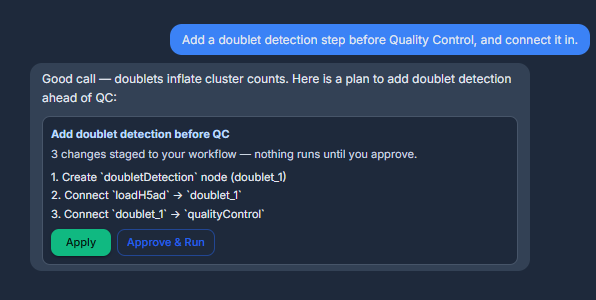
Captured from the app: a plan that creates a Doublet Detection node and wires it between Load and Quality Control. Apply stages it; Approve & Run hands it to the agent.
The eight actions a plan can contain
update_paramsChange parameters on an existing node. Downstream nodes are marked stale so the next run only recomputes what changed.
create_nodeAdd a node next to an anchor, with parameters filled in from the shared schema.
connectAdd an edge between two nodes (input handles included).
disconnectRemove an edge. Treated as destructive — never auto-applied.
delete_nodeRemove a node. Also destructive — always waits for your Apply.
run_nodeRun a terminal node on the canvas; unrun upstream nodes are included automatically.
set_noteAttach or clear a note on a node.
label_branchName and colour a branch of the graph.
Approve & Run — the same card, one step further
Next to Apply sits Approve & Run. One approval lets the agent apply the plan, run it on the visible canvas, verify each node’s result and re-plan when a step falls short — within a budget, with Stop and Undo.
Each workflow tab keeps its own conversation.
Open a second workflow and the chat switches with it. The panel header shows the active workflow’s name, the last twenty messages of that conversation travel with each request, and Undo only ever reverts a plan in the workflow it was applied to. Ask “and what about the resolution?” and the model knows which resolution, on which graph.
One chat per workflow
Conversation history, tool results and the Guided / Auto setting are stored per session on your machine.
Follow-ups stay coherent
Multi-turn context lets a short follow-up refer to the node the previous answer changed.
Model per message
The picker in the chat header switches provider or model at any time; the session continues.
- Nodes
- 9 · 8 completed · 1 error
- Data
- 2,638 cells × 1,838 genes
- Last error
- findMarkers · empty cluster
- Mode
- Guided
- Model
- gpt-5.6-terra
Illustrative · each tab keeps its own chat
Three providers, your account, your bill.
Paste an OpenAI, Anthropic or Google key in the chat settings. Keys are stored in the app on your PC and sent only to that provider; Oreumics runs no relay and adds no charge. The AI Chat, report generation and the nodes that call a model share the same defaults, so the model you see selected is the model that runs.
OpenAI
Default
gpt-5.6-terraDefault model. Requests go through the Responses API so the model keeps reasoning while it calls tools.
Also selectable
GPT-5.6 Sol / Luna, GPT-5.5, GPT-5.5 Pro, GPT-5.4 family
Anthropic
Default
claude-opus-5Replies are read by block type, so reasoning blocks and refusals are handled rather than mis-parsed.
Also selectable
Claude Fable 5, Sonnet 5, Opus 4.8, Sonnet 4.6, Haiku 4.5
Default
gemini-2.5-flashSupported through the google-genai SDK. The Gemini list is offered as-is; it has not been re-verified as recently as the other two.
Also selectable
Gemini 2.5 Pro, Gemini 3 / 3.1 / 3.5 previews
Model identifiers as shipped in v0.25.0. Providers rename and retire models; the picker in the app is the current list.
Metadata goes to the model. Your matrices do not.
Every computation runs locally. The chat is the one optional component that talks to a provider, and what it sends is the workflow description and the small results of read tools — never the data those tools read.
- Sent: your prompt, node types and labels, parameter values, run status and error messages, edges, and tool results such as cell counts, column names, top marker genes or a QC threshold
- Never sent: the expression matrix, layers, raw count files, IDAT or fragment files, images — figures are stripped from every result before it reaches the model
- Your key: stored in the app on this PC, used directly against the provider you chose, removable at any time from the chat settings
The chat is one door. There are three more.
Approve & Run
One approval; the agent applies, runs, verifies and re-plans on the visible canvas, within a budget.
External assistants (MCP)
Claude Desktop, the ChatGPT desktop app (Codex) and Claude Code read the same tools and propose plans that arrive as Apply cards.
Reports
An outline detected from the graph, an emphasis step in chat, then an HTML / PDF report built from the same read tools.
Methods & receipts
A deterministic Methods paragraph with no model involved, and a provenance receipt on every run the chat can read back.
End matter
Try the Copilot free during the beta.
Request a Beta Access ticket, install Oreumics, paste a key from the provider you already use. Everything else on this page is in the app you download.